



The problem is not having many accounts: it is sharing a single browser#
Accounts in the same browser profile share the site’s storage. Depending on the platform, switching accounts may sign out the previous account or leave you working in an unexpected account. Separate profiles help keep each client’s context distinct; some services also provide their own account switcher.
Incognito is useful for a temporary session: its session storage is removed when you close all incognito windows. For recurring work, you can use Chrome profiles. Mantis adds a profile list with folders, tags and notes, plus per-profile proxy settings when your work needs them.
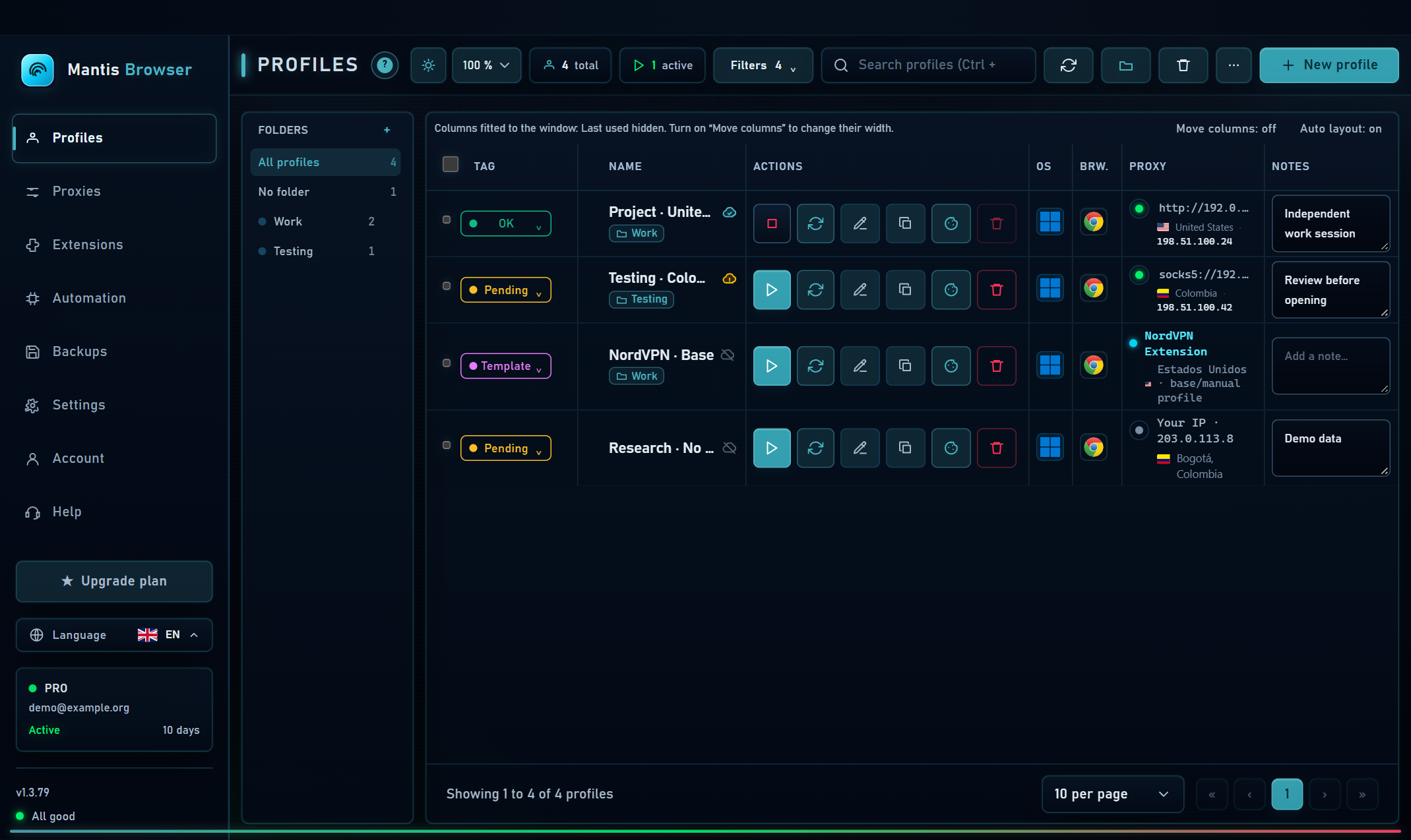
Each profile keeps its own cookies, storage and settings. This separates sessions on the same site, but does not prevent a platform from linking accounts through other information.
Plan the split before creating anything#
Before touching the app, write down how many profiles you need. The most common mistake is not creating too few, but creating half-finished profiles and ending up reusing one for two clients “just for today”.
- One profile per active client or project. If a client has two brands, two profiles.
- A separate profile of your own for personal accounts. Do not mix it with work.
- A test profile for whatever you want to experiment with, so you never risk a working session.
Start with two authorized accounts to check the separation. Mantis’s free plan includes 5 profiles on 1 PC, with no card or expiry date. Personal and test profiles also count toward that limit. Basic includes up to 15 profiles for $4.99 per month; see the plans if you need more.
A template for starting with two profiles#
| Profile | Folder | Useful note |
|---|---|---|
| Client A · Store | Client A | Check the account before editing. |
| Client B · Content | Client B | Check the account before posting. |
These are example names, not real customer accounts. Try this structure with some of the five free profiles: create the folders, place each profile in the appropriate one and use a short note explaining its purpose. You can keep two profiles open at a time. Do not store passwords or recovery codes in notes.
Create one profile per client#
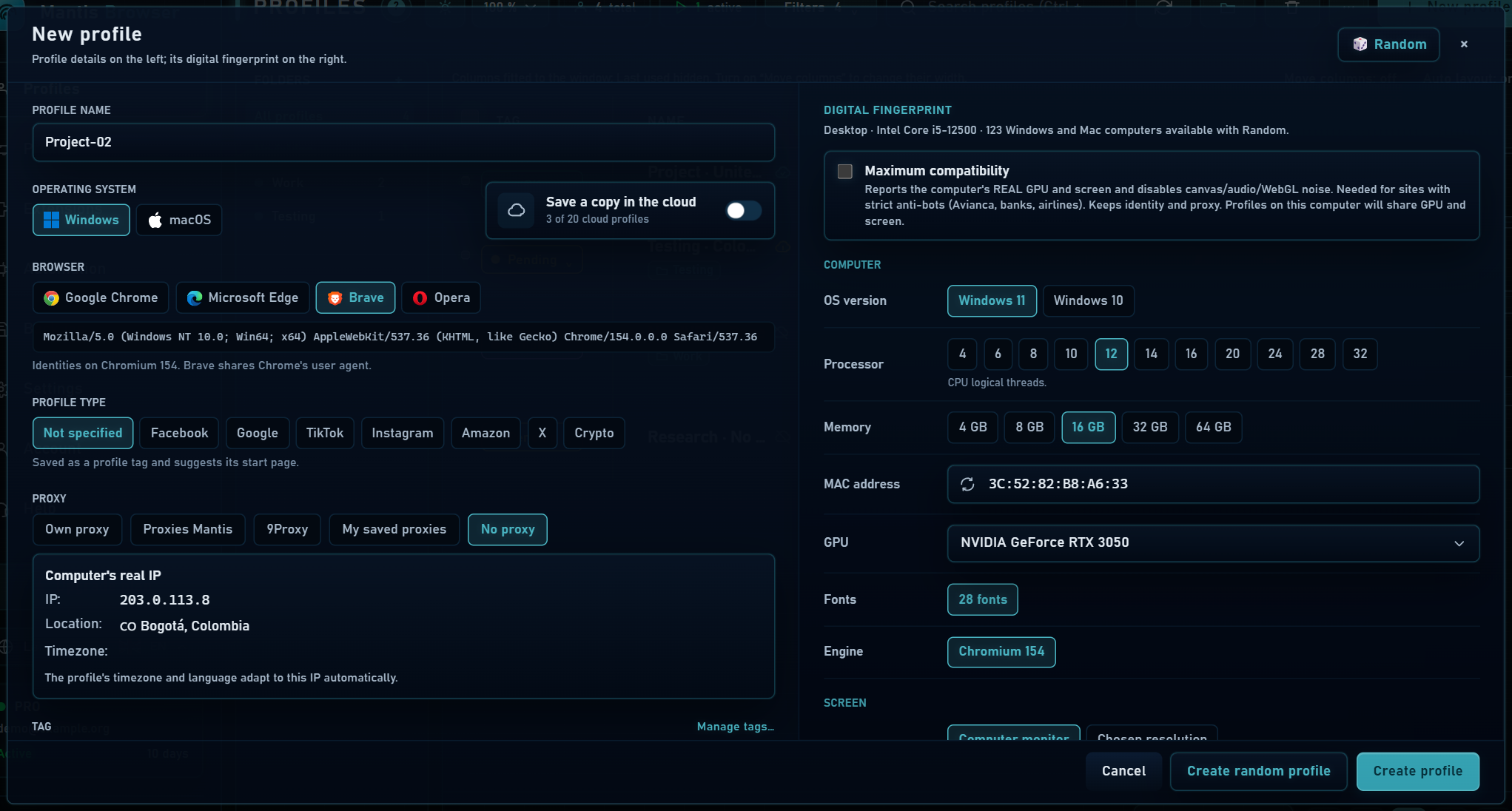
- In Profiles, click New profile and name it after the client. A name you recognize at a glance is worth more than a pretty one.
- Assign the client folder and a tag. The folder groups the work; the tag lets you filter later by country, status or type of service without moving anything.
- Review the identity the app proposes and save it. Keep the default one: it is consistent with itself, and that is exactly what you want.
- Repeat for every client. For several at once, use bulk creation if your plan includes it.
Staying organized past ten profiles#
With two clients everything fits in your head. With fifteen, it does not. These are the labels the app provides and what each one is for:
| Label | Use it for |
|---|---|
| Folder | Grouping by client, or by team if you work with more people. |
| Tag | Cross-cutting criteria: country, type of service, up to date or pending. |
| Status | Your work situation: pending, active, blocked by a site. |
| Note | What does not fit in a name: who you spoke to, what is missing, what not to touch. |
| Per-profile password | Require an unlock within Mantis. It does not encrypt the profile files on disk. |
Use a separate profile for each work context and record its client and account. For example: name “Client A · store”, folder “Client A” and note “Authorized test account”. Do not store passwords or recovery codes in notes.
Proxies: one connection per client, if you need it#
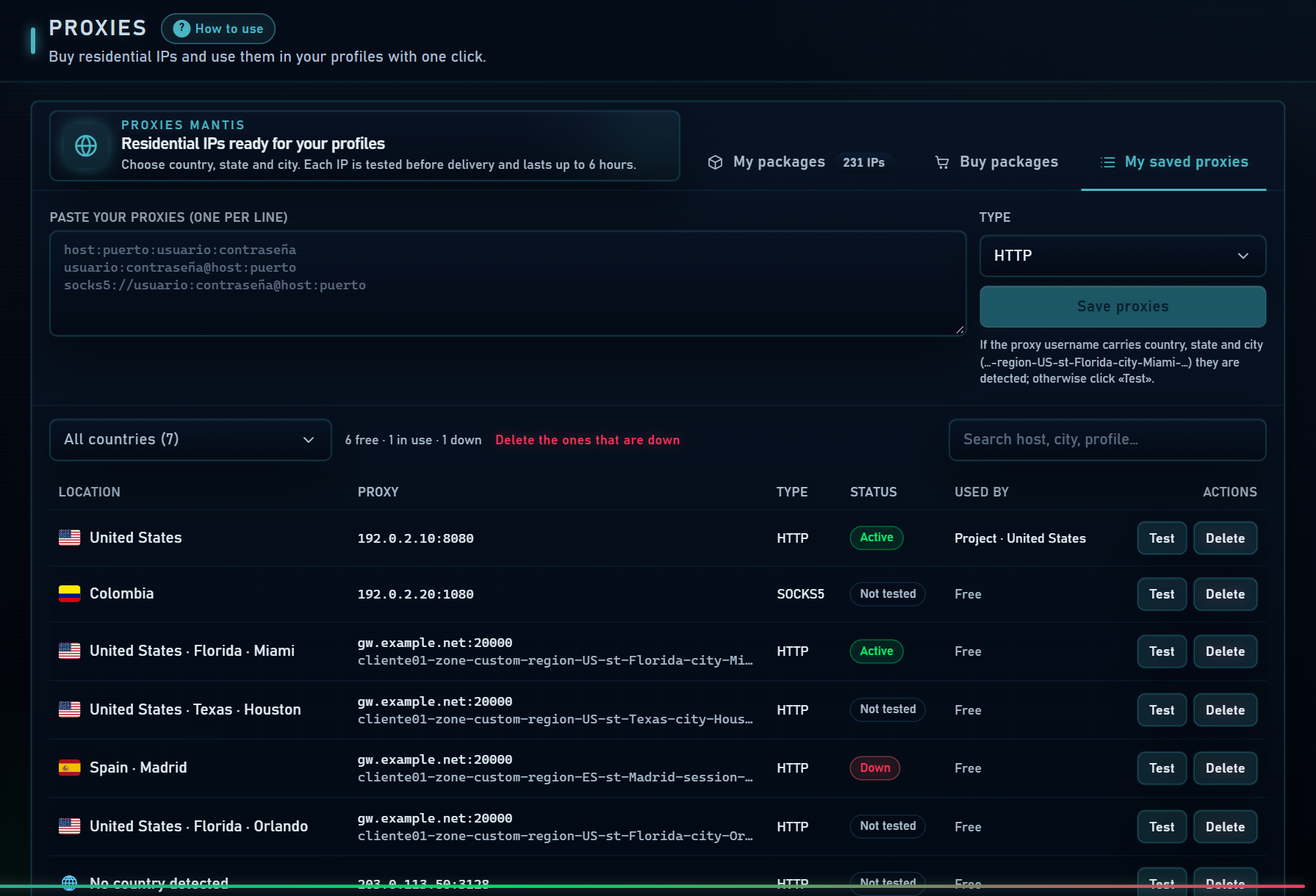
Each profile stores its own connection. You can assign a different proxy to each client so traffic leaves through a specific IP, and test it before using it. The app supports HTTP, HTTPS, SOCKS, SSH and TOR.
A proxy may help when a client provides an office connection or for regional testing allowed by the service. You can use your own or buy residential IPs in the app’s Proxies section. Changing IP does not resolve violations of a platform’s terms.
The daily routine, in four steps#
- Search for the client with
Ctrl + Finstead of scanning the list by eye. - Start its profile. If you keep many open at once, use the queue and adjust concurrency so you do not choke your PC’s memory.
- Check the account name or avatar before posting. For another account belonging to the same client, create a new profile and sign in to that account; duplicating a profile may copy its existing session.
- Stop the profile when you finish. When you reopen it, the site may keep the session or ask you to sign in again because it has expired or because of its security checks.
| If you want to… | Use |
|---|---|
| Separate clients day to day | One profile per client. |
| Two accounts belonging to one client | A new profile for each account. |
| Test something without risking a session | A separate test profile. |
| Hand the work to a colleague | Duplicate and transfer, depending on your plan. |
What this does not solve#
This part matters more than the previous one, because it is the one that stops you from buying the wrong expectation.
- It does not replace each platform’s rules. If a platform forbids holding several accounts, separating them into profiles does not make it allowed. Read its terms: how you use each account is your responsibility.
- It is not a button to dodge blocks. No serious tool can promise that a sanctioned account comes back, or that you will never be detected. Be wary of anyone who promises it.
- It does not fix an already contaminated session. If you mixed two clients in the same profile, split them into new profiles and sign in again; the old folder keeps the mixture.
- It does not decide for you what is legitimate. Working for several clients is normal; using isolation to operate accounts that are not yours is not.
The official documentation covers each piece separately: create and edit profiles, folders, tags and notes and configure and test proxies.
Where to start today#
If you would like to keep your projects in one list, try Mantis Browser for Windows or Mac. The free plan includes 5 profiles on one computer, with no card or expiry date. Create a profile for each of two authorized accounts, open both and check which account appears in each window. Follow the profile guide for the steps.
| Plan | Profiles per PC | PCs | Monthly price |
|---|---|---|---|
| Free | 5 | 1 | Free |
| Basic | 15 | 1 | $4.99 |
| Starter | 30 | 2 | $9.00 |
| Pro | 50 | 3 | $19.00 |
| Max | unlimited | 5 | $39.00 |
Quarterly, half-yearly and yearly periods are discounted against the monthly price. Profile limits apply per PC and proxies are purchased separately. See the details on Pricing.
The organization features in this article —folders, tags, notes, trash, history and per-profile password— are in every plan with valid access. API and CDP automation (api and cdp automation (playwright, puppeteer, selenium)) requires Pro or Max; bulk creation and backups need Starter or above.